3. Install Discord
In this chapter, we install Discord
 |
With Discord, we can talk to one another online |
|---|---|
3.1 Exercise 1
Go to the Discord homepage at https://discord.com/download
The Discord homepage
|
Discord is used mostly by games and Twitch streamers |
|---|---|
3.2 Exercise 2
At the Discord homepage, click in 'Install' to install Discord.
 |
Installing Discord is easy |
|---|---|
3.3 Exercise 3
Start Discord. You will see the Discord dashboard:
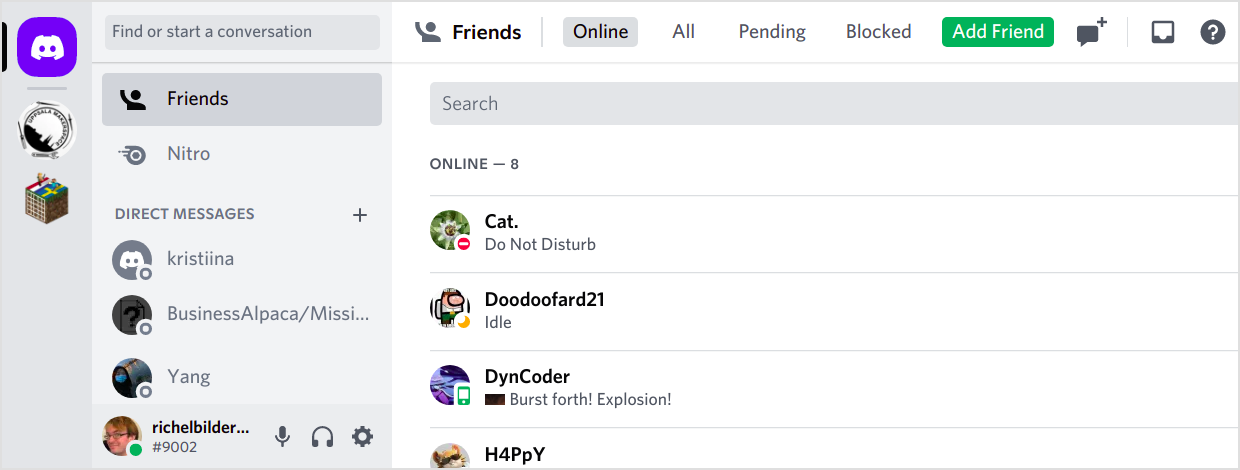
The Discord dashboard
 |
After a while, you have many cool Discord servers here |
|---|---|
|
Discord is big, take your time to look around |
|---|---|
3.4 Exercise 4
Time to add a Discord friend.
Click on 'Add Friend' and fill in a username from someone you
know, for example richelbilderbeek#9002.
|
Hopefully, you have picked a good Discord username yourself |
|---|---|
3.5 Exercise 5
Time to go to our Discord server.
Ask your Discord friend to invite you to the Discord server.
You will get a PM with an Invite link. Click that link.
|
One can also use a direct Invite link to the server |
|---|---|
3.6 Final exercise
On our Discord server, say something at 'The Big Table' channel.
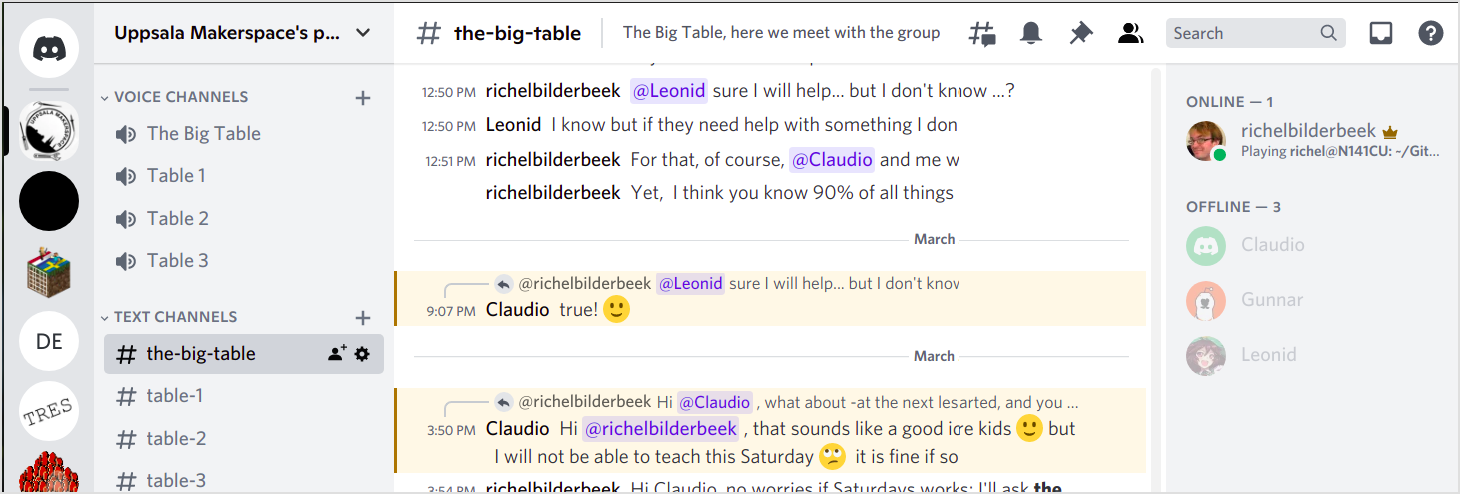
Our Discord server
|
A Discord server can do many things, take your time to look around |
|---|---|
|
Of course, I will say the coolest thing! |
|---|---|