🇸🇪 0. Att installera och konfigurera PrusaSlicer 🇬🇧 Installing and configuring PrusaSlicer
🇸🇪 0.1. Att installera PrusaSlicer 🇬🇧 0.1. Installing PrusaSlicer
Om du kann inte starta PrusaSlicer (ser nästa steg), måste man installera detta program.
I en webbläsare, söka 'Download PrusaSlicer'
eller går direct till
https://www.prusa3d.com/p/prusaslicer.
Där kann du ladda ner filerna för ditt favorit operativsystem.
If you cannot start PrusaSlicer (see next step), you must install this program.
In a browser, search for 'Download PrusaSlicer'
or go directly to
https://www.prusa3d.com/p/prusaslicer.
There you can download the files for your favorite operating system.
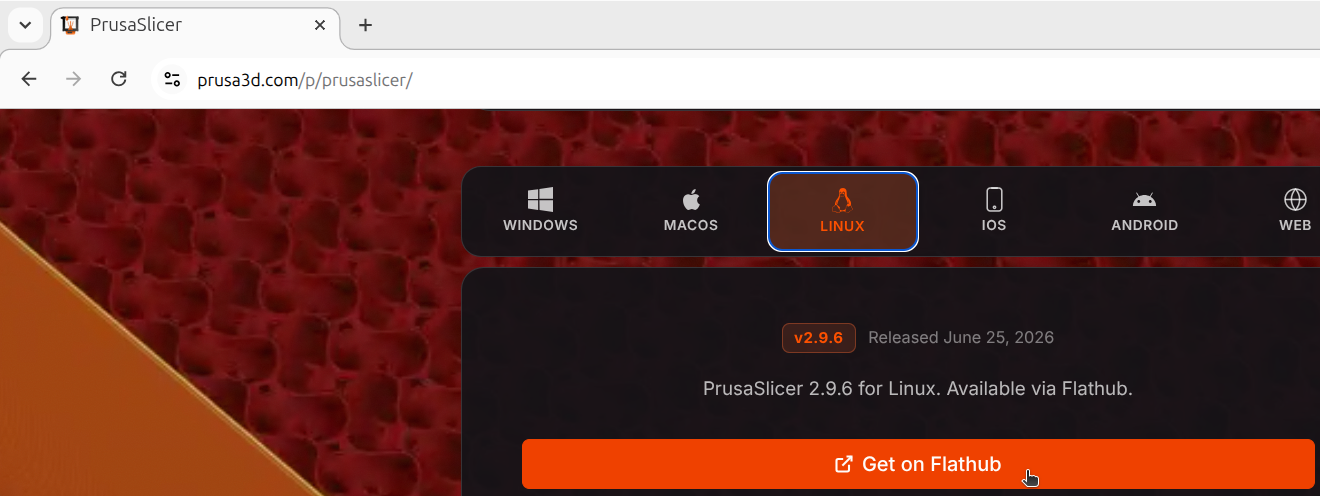
Starta filen för att installera PrusaSlicer.
Launch the file to install PrusaSlicer.
🇸🇪 0.2. Att starta PrusaSlicer 🇬🇧 0.2. Starting PrusaSlicer
På din dator, startar PrusaSlicer. På datorerna i Uppsala Makerspace finns det ofta en ikon på Skrivbordet. Klicka på PrusaSlicer ikonen.
On your computer, start PrusaSlicer. On the computers in Uppsala Makerspace there is often an icon on the Desktop. Click on the PrusaSlicer icon.

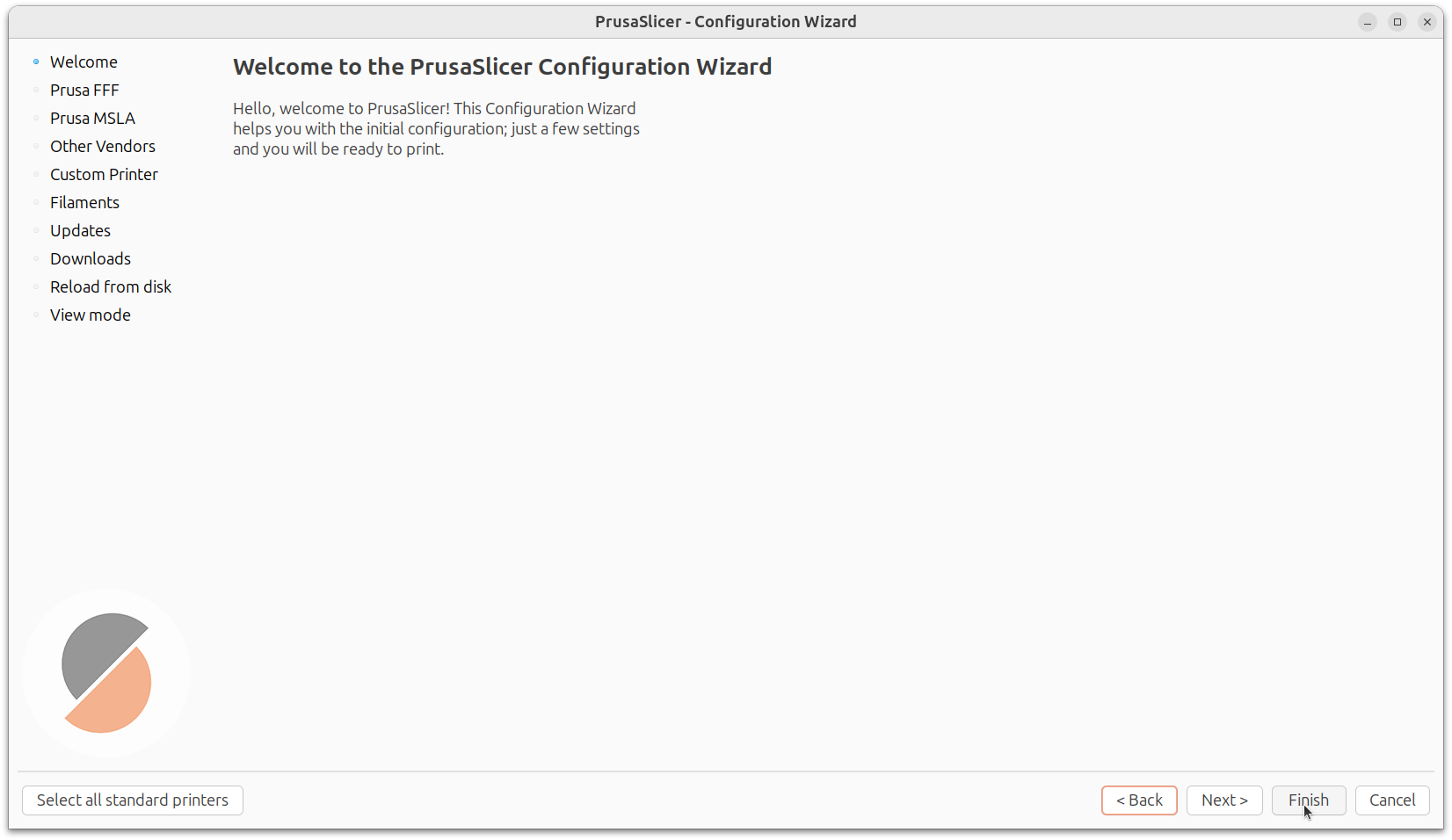
Nu startar PrusaSlicer. Om den visar den så-kallade 'Configuration Wizard' ('Konfigurations hjälpare'), klicka på 'Finish' ('Klar').
Now PrusaSlicer will start. If it displays the so-called 'Configuration Wizard', click 'Finish'.
🇸🇪 0.3. Att konfigurera PrusaSlicer 🇬🇧 0.3. Configuring PrusaSlicer
Om PrusaSlicer inte visar våra 3D skrivaren (dem har namn av planeter), är det dags att konfigurera PrusaSlicer.
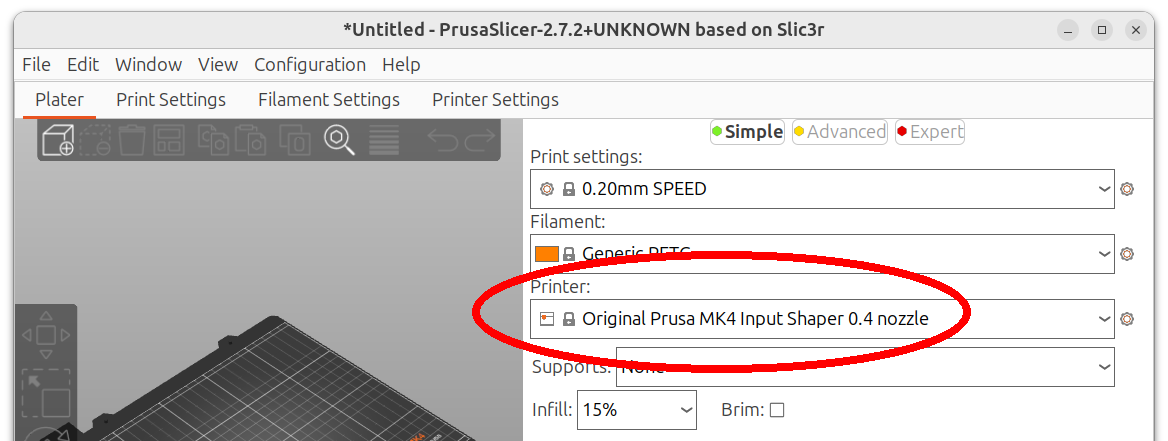
Här ser det ut när PrusaSlicer inte visar en av våra 3D skriverna:
If PrusaSlicer doesn't show our 3D printers (they have names of planets), it's time to configure PrusaSlicer.
Here's what it looks like when PrusaSlicer doesn't show one of our 3D printers:
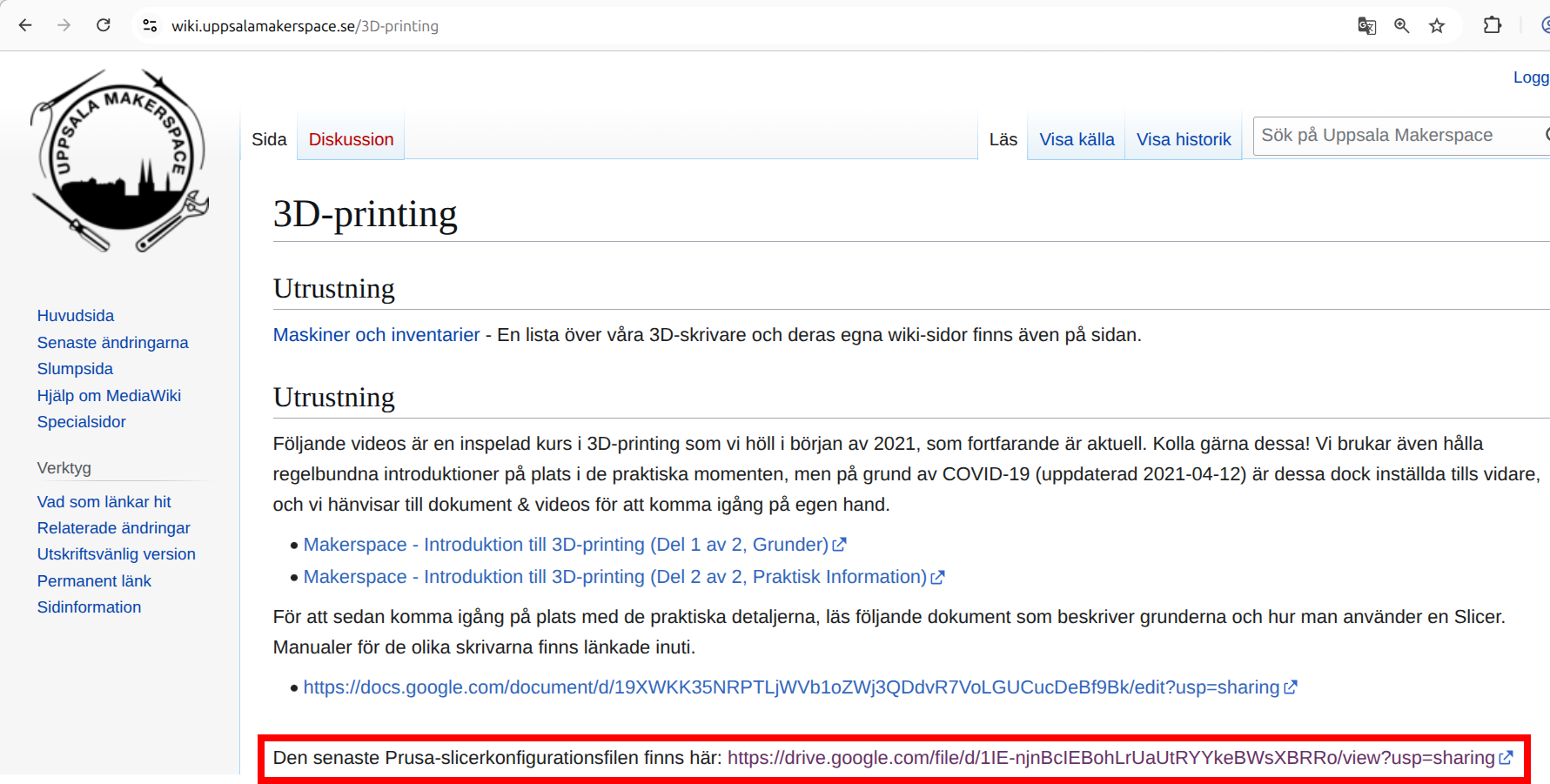
Uppsala Makerspace har en konfigurationsfil för alla sina 3D skrivarna.
I en webbläsare, söka 'Uppsala Makerspace wiki 3D printing'
eller går direct till
https://wiki.uppsalamakerspace.se/3D-printing.
Uppsala Makerspace has a configuration file for all of their 3D printers.
In a browser, search for 'Uppsala Makerspace wiki 3D printing'
or go directly to
https://wiki.uppsalamakerspace.se/3D-printing.
Ladda ner den senaste konfigurationsfilen.
Download the latest configuration file.
I PrusaSlicer, klicka 'File | Import | Import Config Bundle'.
In PrusaSlicer, click 'File | Import | Import Config Bundle'.
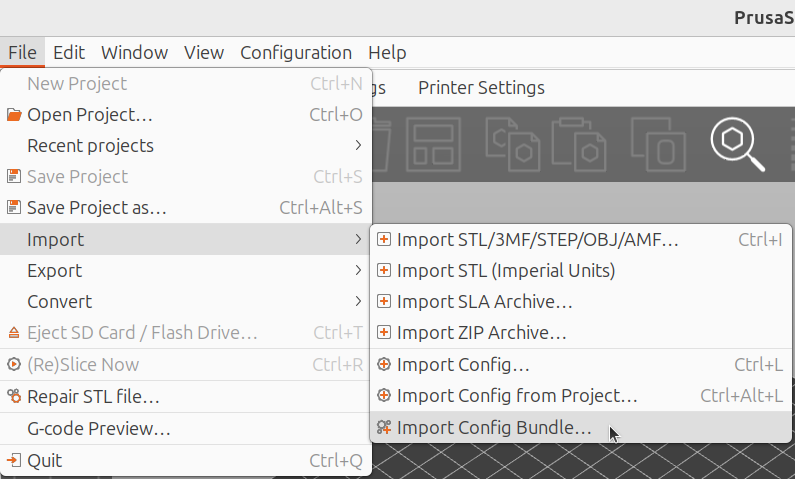
Leta efter konfigurationsfilen och klicka på 'Open' ('Öppna').
Search for the configuration file and klick on 'Open' ('Öppna').

Clicka på 'OK' om en fönster visar att allt har lyckats.
Click 'OK' if a window shows that everything was successful.
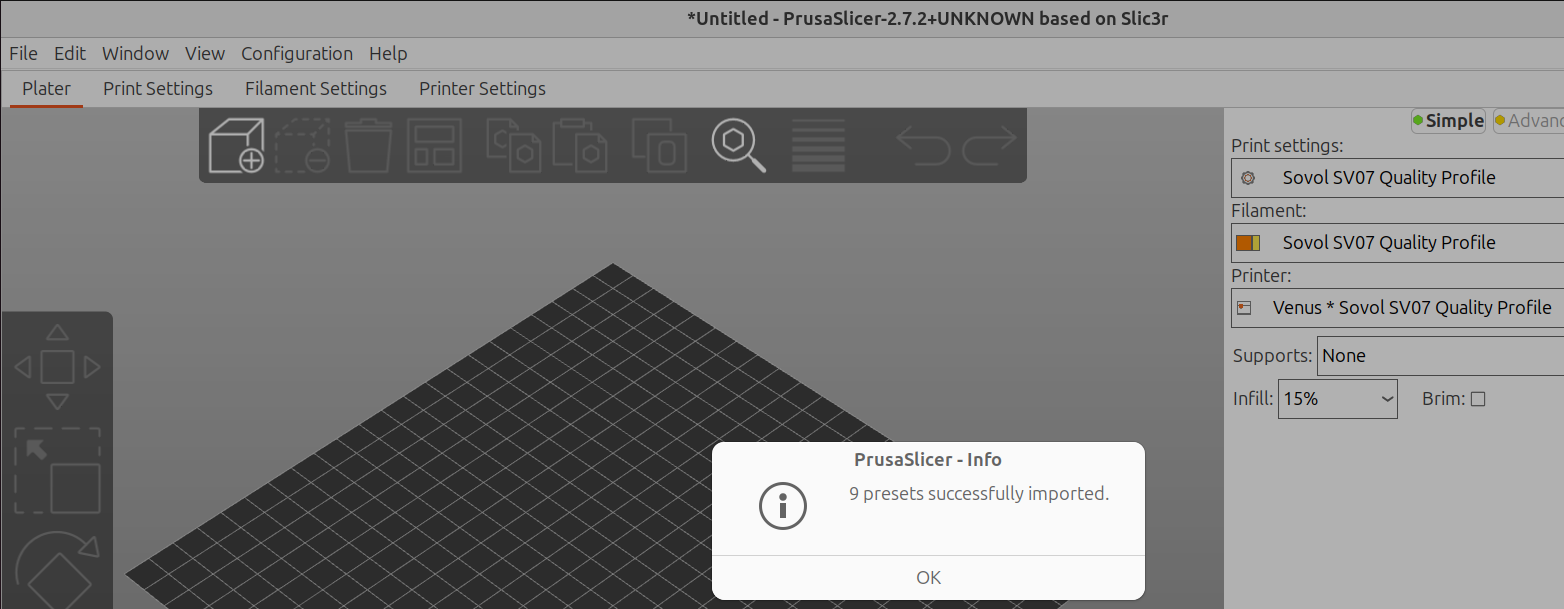
Nu visar PrusaSlicer att vår 3D skrivaren kallade 'Venus' är tillgängligt.
Now PrusaSlicer shows that our 3D printer called 'Venus' is available.
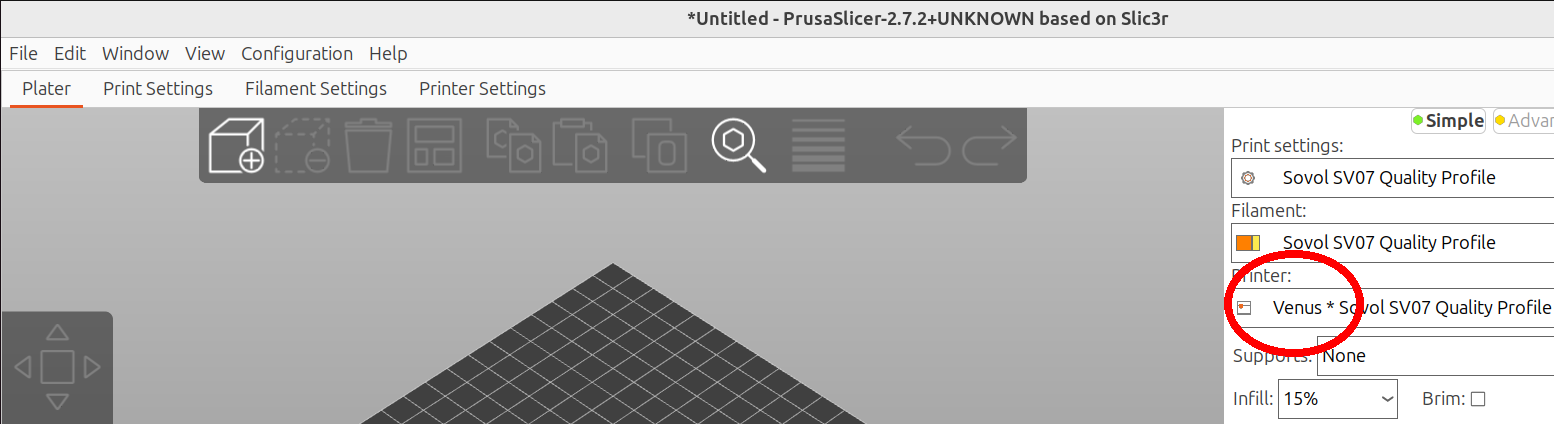
Grattis! Nu kann du skriva ut i 3D!
Congratulations! You can now 3D print!